Upgrade, cancel, and payments
Last updated October 25, 2026
Upgrading or changing plan
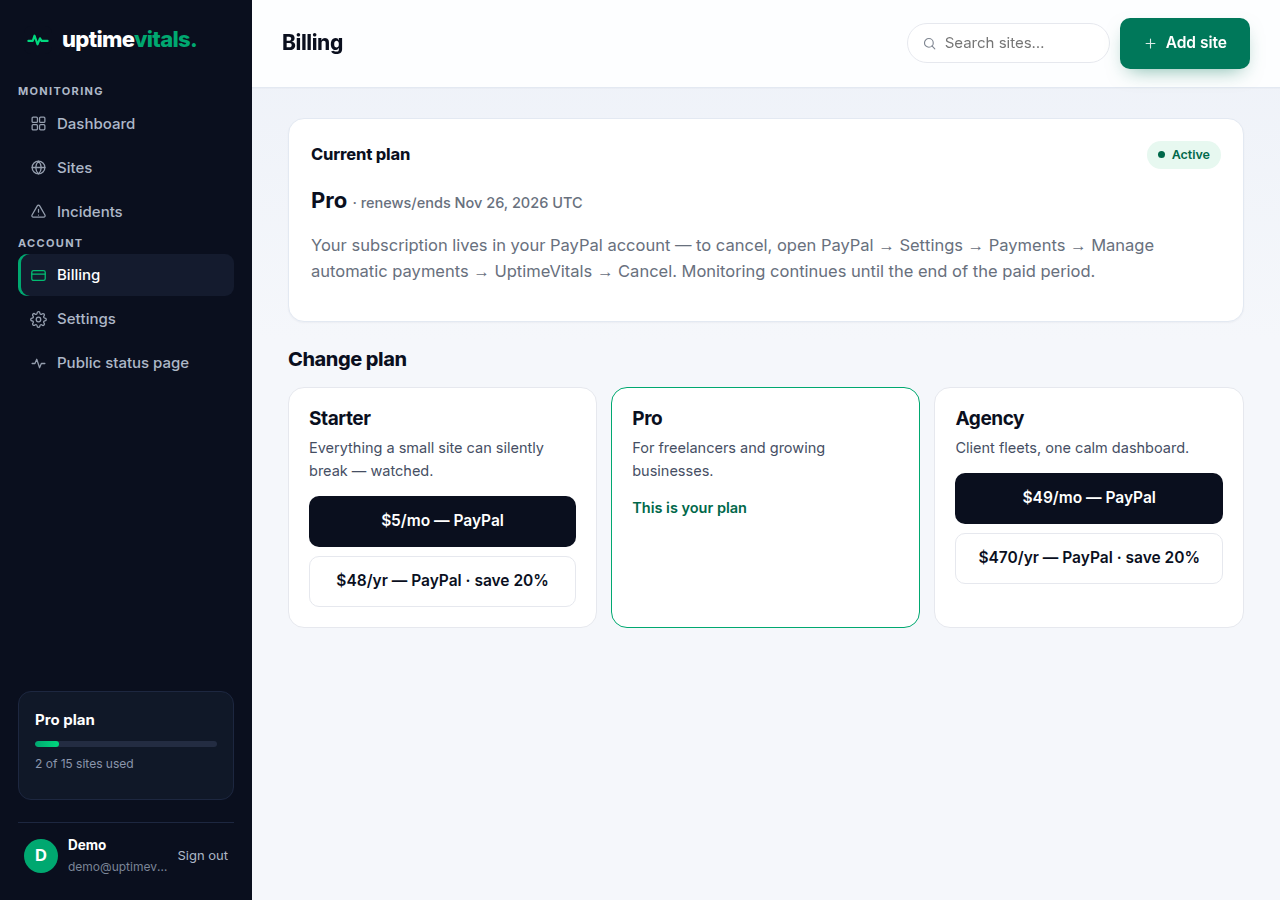
- Open Billing in the sidebar. Free accounts see an Upgrade section; paid accounts see Change plan.
- Pick a plan card and choose monthly or annual billing, then pay with PayPal — or by card, when card checkout is offered on your Billing page.
- After payment, your plan activates as soon as the payment provider confirms it: usually under a minute for PayPal, seconds for card. If the page hasn't flipped yet, refresh it.
If checkout is cancelled, no charge is made and your plan is unchanged.
Cancelling
- Paid by card: the Billing page has a Cancel subscription button. Cancelling stops renewal; your plan stays active until the end of the paid period.
- Paid by PayPal: the subscription lives in your PayPal account. Open PayPal → Settings → Payments → Manage automatic payments → UptimeVitals → Cancel. Monitoring continues until the end of the paid period.
When the paid period ends, your account returns to the Free plan (1 site, daily checks). If you were monitoring more sites than Free allows, tidy up your site list or resubscribe.
Subscription history
Below the plan cards, the Billing page lists your last 10 subscriptions: plan, period, amount, provider (PayPal or card), status, and start date.
Still stuck?
Talk to a human — support is answered by the person who runs the service, usually within one business day.