Reading your dashboard
Last updated October 24, 2026
After signing in you land on Dashboard. If you have no sites yet, it shows a "Watch your first website" card with two buttons: Add your first site, and Try the free scanner first.
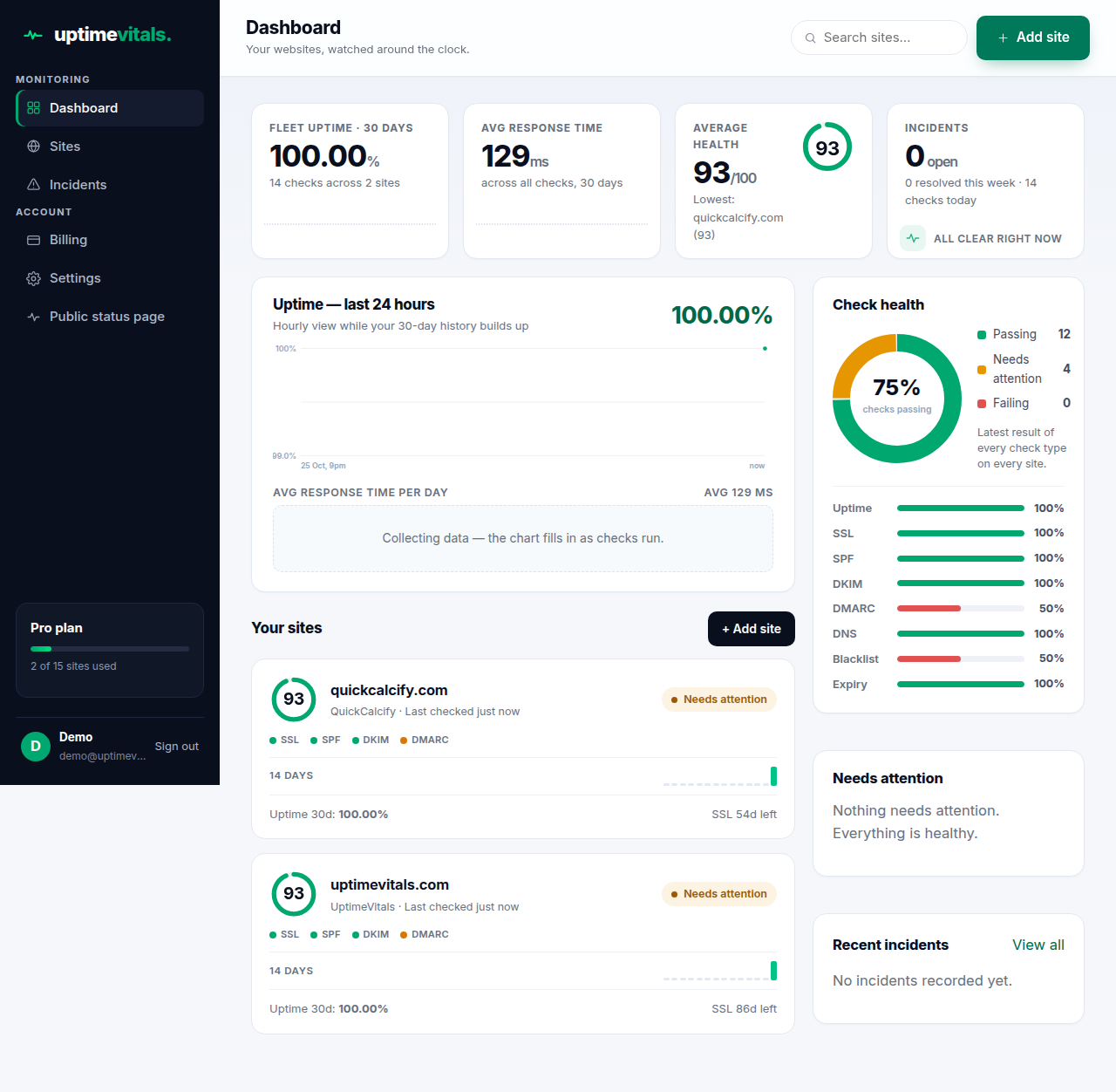
The four KPI cards
- Fleet uptime · 30 days — the share of uptime checks that succeeded across all your sites, with a 14-day area chart and the total check count.
- Avg response time — average milliseconds across all checks in the last 30 days, with a 14-day bar chart.
- Average health — the mean of your sites' 100-point scores, with a ring, and the lowest-scoring site named underneath.
- Incidents — how many are open right now, how many resolved this week, and how many checks ran today. "All clear right now" means nothing needs you.
The main charts and check health
Below the KPIs, the main chart shows uptime over the last 24 hours, hourly, while your 30-day history builds up; a second chart tracks average response time per day. Beside them, Check health shows the share of checks passing across all your sites, with a per-check breakdown.
Your sites
Below the KPIs, each site gets a card with its score ring and a 14-day uptime sparkline. Click a card to open that site's detail page. + Add site sits at the top of this section.
The sidebar
Under Monitoring: Dashboard, Sites, Incidents. Under Account: Billing, Settings. Below them, your plan name, a usage bar ("X of N sites used"), and — on Free — an Upgrade button. Your name, email, and Sign out are at the bottom.
Next: Managing your sites.
Still stuck?
Talk to a human — support is answered by the person who runs the service, usually within one business day.