Managing your sites
Last updated October 22, 2026
Your site list
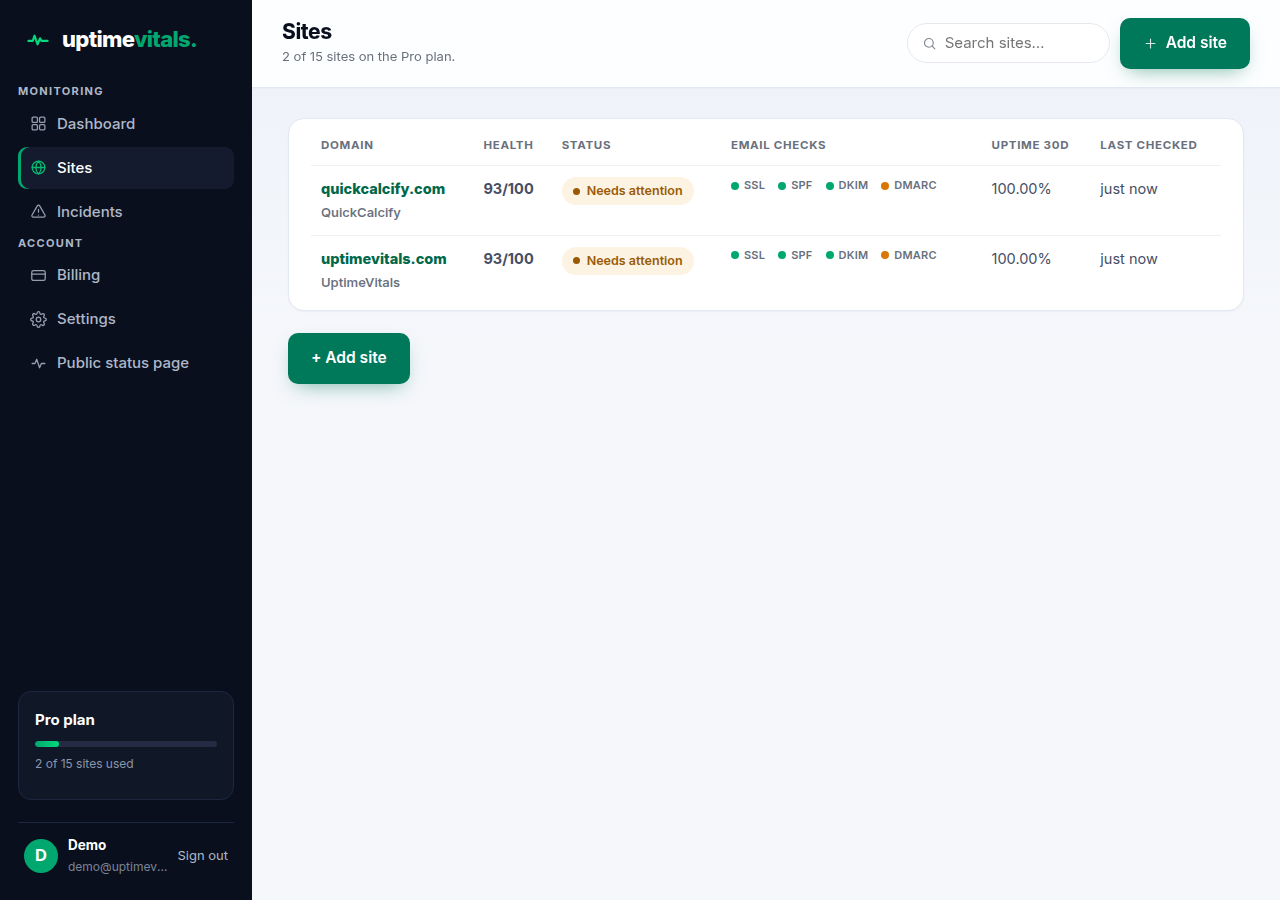
Open Sites in the sidebar. Each row shows the domain (and its label, if you set one), its health score out of 100, its status, dots for the email checks (SPF, DKIM, DMARC), 30-day uptime, and when it was last checked. The header counts your usage: "X of N sites on the Y plan."
Adding a site
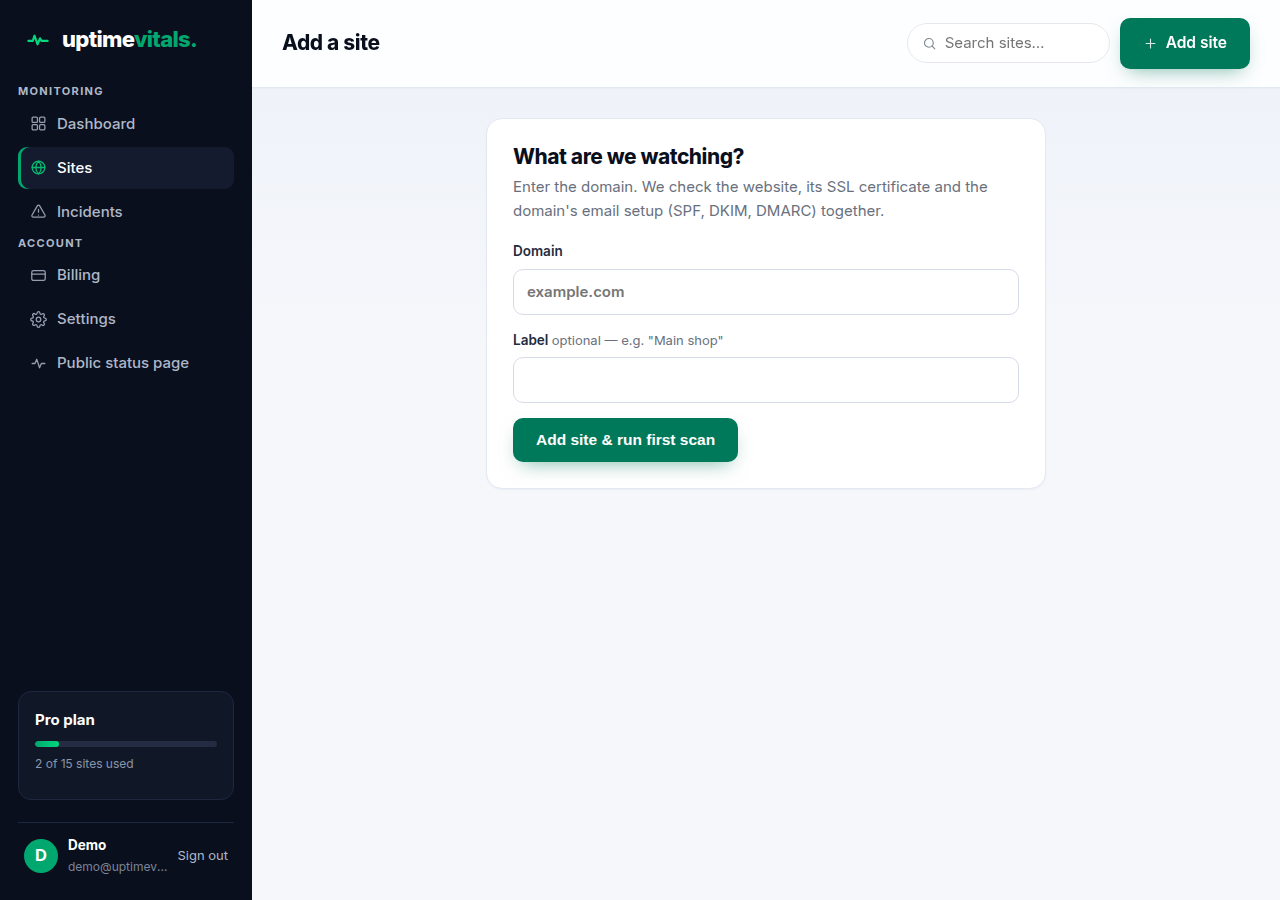
- Click + Add site.
- Enter the domain (just example.com) and an optional label.
- Click Add site & run first scan. The full scan runs at once and you land on the site's detail page.
Adding is blocked until your email is verified, and when your plan's site limit is reached — see Plan limit reached. Adding a domain you already monitor sends you to its existing page instead of creating a duplicate.
The site detail page
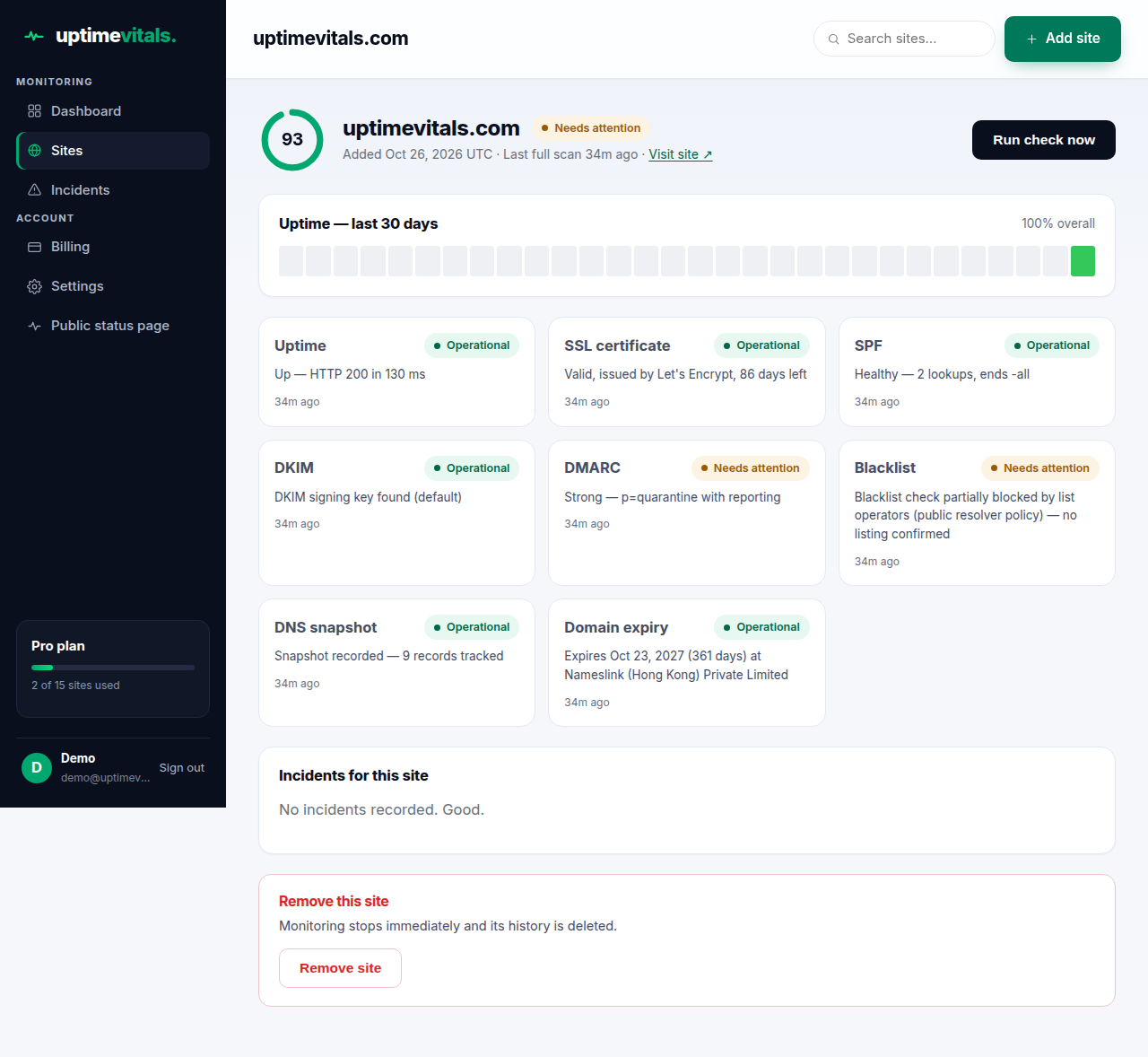
- Header: score ring, status, the date it was added, when the last full scan ran, and a Visit site link.
- Run check now: runs a full scan immediately instead of waiting for the next scheduled one, and updates the results on the spot.
- Uptime — last 30 days: one bar per day. Green means about 100% up, amber 95–99.9%, red below that, grey means no data yet.
- Check cards: Uptime, SSL certificate, SPF, DKIM, DMARC, Blacklist, DNS snapshot, and Domain expiry — each with its own status and a one-line summary.
- Incidents for this site: the last 10, with start and resolution times. Open ones show an Open badge.
Removing a site
At the bottom of the detail page is a Remove this site danger zone. Removing stops monitoring immediately and deletes the site's checks, uptime history, DNS snapshots, and incidents — it cannot be undone. If you only want to stop alerts for a site, removing it is the way: there is no pause button.
Next: Alerts explained.
Still stuck?
Talk to a human — support is answered by the person who runs the service, usually within one business day.